
Summary:
Multi-Factor Authentication (MFA) adds an essential layer of security by requiring users to verify their identity using two or more authentication methods during login. In OpenSolar, users can manage their own MFA settings, while organizations (Orgs) have the option to enforce MFA for their members. This ensures that sensitive data and operations remain secure—even if a password is compromised.
Table of contents:
What is Multi-Factor Authentication?
How to Enable Two-Factor Authentication (2FA) as a Staff Member:
- Add SMS:
- Add Authenticator App:
Save Your Recovery Codes
2FA During Login:
How to Change or Disable 2FA:
How to Enforce 2FA for an Entire Organization:
What is Multi-Factor Authentication?
Multi-Factor Authentication (MFA) is a security mechanism that requires users to present two or more verification factors to gain access to a system. This greatly reduces the risk of unauthorized access, as compromising multiple authentication factors is significantly more difficult than just a password.
In OpenSolar:
MFA is implemented at the user level, meaning users can choose to enable or configure it.
Organizations can enforce MFA, requiring all staff members to have it enabled before accessing the Org.
🔐 Note: Users without MFA will not be prompted to enable it until they attempt to access an Org that has enforced MFA.
How to Enable Two-Factor Authentication (2FA) as a Staff Member:
Go to User Settings.
Click on the "Two-Factor Authentication" button.
Click on the "Two-Factor Authentication" button.
Select “Enable Two-Factor Authentication”.
Choose one of the following authentication methods:
Add SMS:
Click “Add SMS”.
Enter your country code and phone number.
Click “Send Verification Code”.
Enter the code you receive via SMS and click “Submit”.
Add Authenticator App:
📲 You will need an authenticator app like Google Authenticator or Authy (downloadable via the iOS/Android app store).
Select “Add Authenticator App”.
Scan the displayed QR code using your authenticator app.
Enter the 6-digit code from the app into OpenSolar and click “Submit”.
Save Your Recovery Codes:
After a successful setup, you’ll be prompted to download recovery codes.
Why It’s Important
Recovery codes allow you to log in if you lose access to your phone or authenticator device. Store them securely using a password manager or encrypted file.
2FA During Login:
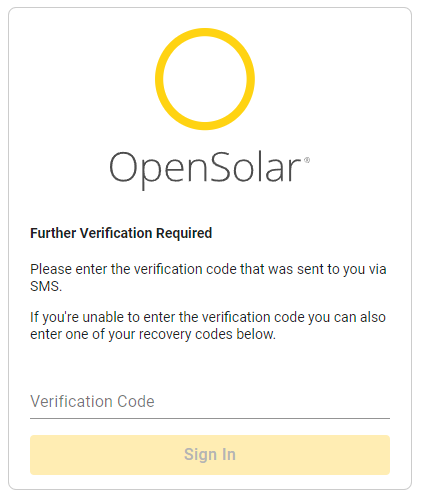
If 2FA is enabled:
You’ll be prompted to enter a verification code after entering your email and password.
If both SMS and the Authenticator App are configured, OpenSolar will default to the Authenticator App for verification.
How to Change or Disable 2FA:
You can manage your 2FA settings by navigating to:
User Settings > Two-Factor Authentication
Available Options:
Remove one of the two methods (SMS or App).
Enable both methods for added redundancy.
Replace:
To change phone number → click “Replace” under SMS.
To change authenticator app → remove and set it up again.
Disable 2FA by clicking “Disable Two-Factor Authentication”.
Note: If your Org enforces 2FA, you cannot disable it. The option will be restricted, as shown in the interface.
How to Enforce 2FA for an Entire Organization:
Admins can require that all Org members have 2FA enabled to access Org data.
Steps:
Go to Control > Company > Two-Factor Authentication.
Toggle “Enforce Two-Factor Authentication”.
This ensures every staff member must configure 2FA before accessing the Org, greatly enhancing the security posture.
Comments
0 comments
Please sign in to leave a comment.