
Summary
The Communications page in the CashFlow Hub is your central command center for all automated messaging. By configuring these settings, you ensure that every customer interaction—from the first payment request to the final receipt—is professional, timely, and automated to save you admin time.
Table of Contents
Accessing Communications
To reach your communications command center, navigate to Cashflow > Settings > Communications.
Pro Tip: We highly recommend reviewing these settings as soon as you adopt CashFlow. While OpenSolar provides professional default templates, you should ensure the timing and tone align with your specific business operations.
Customer Payment Emails: Deep Dive
The timing of your entire communication flow is dictated by one critical field: the Payment Due Date.
1. Payment Request (The Trigger)
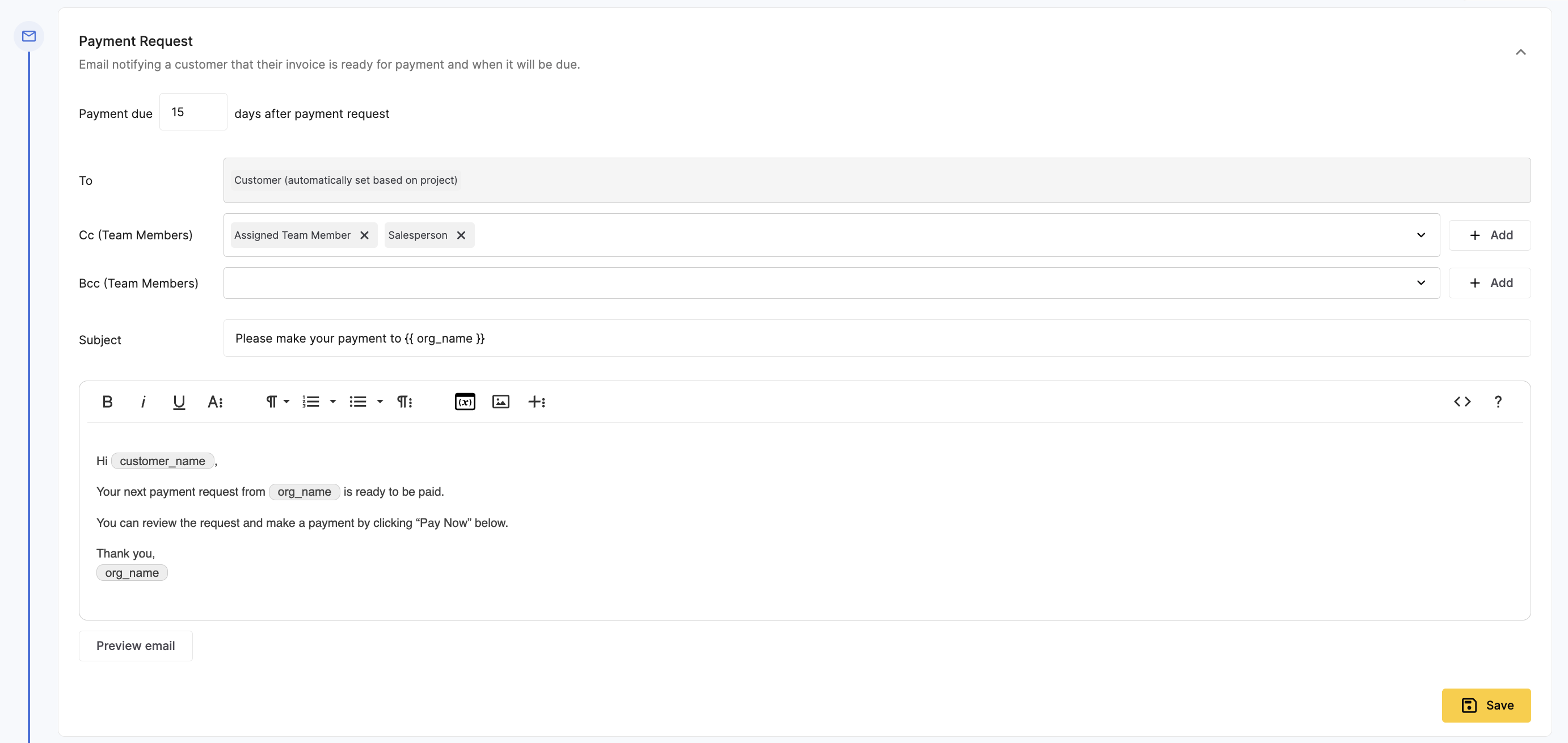
This is the initial email sent to your customer to start the payment process.
Setting the Due Date: Inside the "Payment Request" accordion, set the Number of Days for the payment to be due.
The Logic: This number is the "master trigger." If you change the due date, the system automatically updates the schedule for all subsequent Reminders and Overdue notices to keep your timeline accurate.
2. Payment Request Reminders
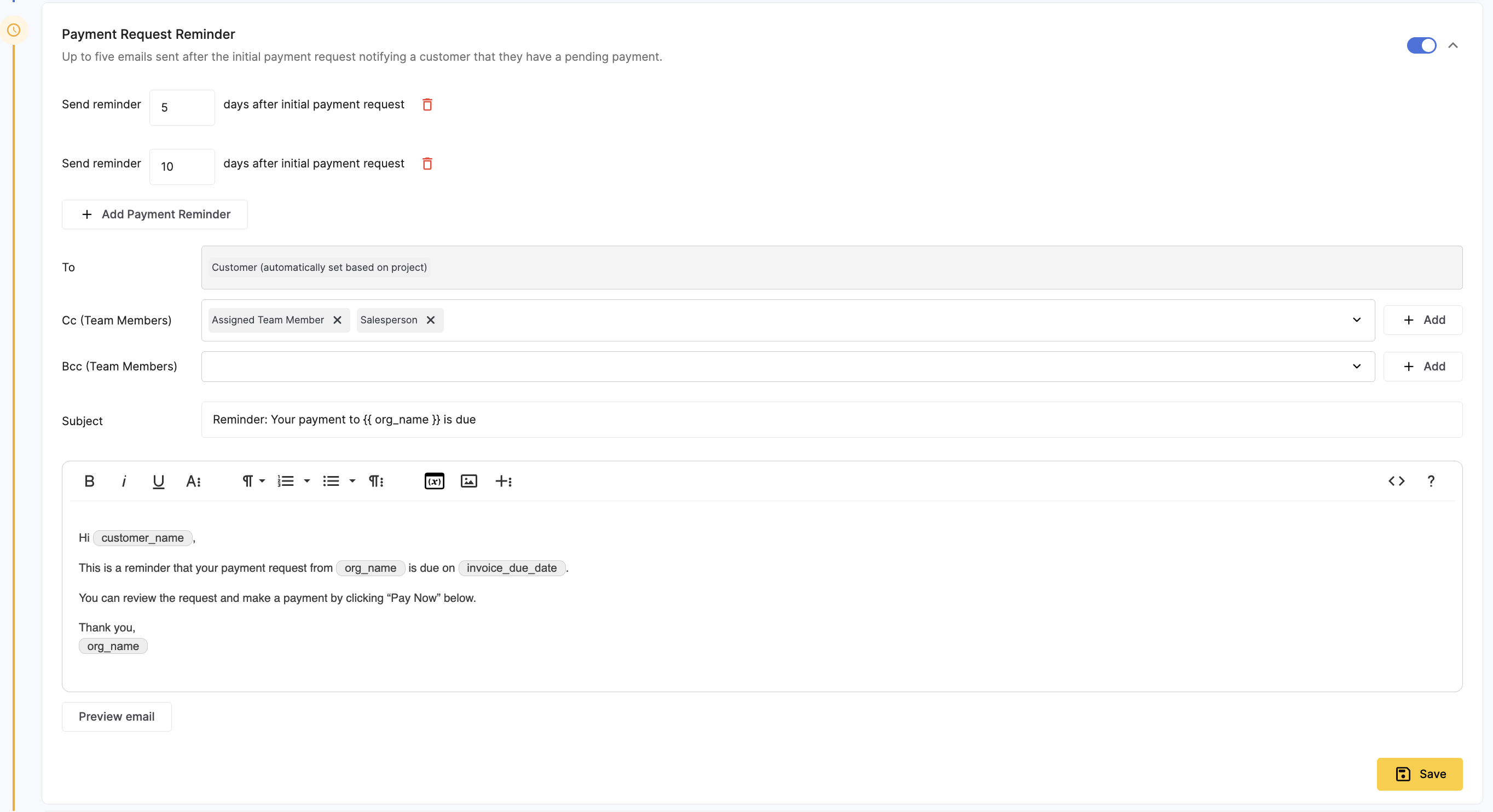
Keep your cash flow moving without manual follow-up.
Custom Cadence: You can add multiple reminders (e.g., at 5, 10, and 13 days).
Muting Notifications: If you need to stop reminders for a specific customer, you can shut them off at the project level after the initial request has been sent.
3. Payment Request Due & Overdue
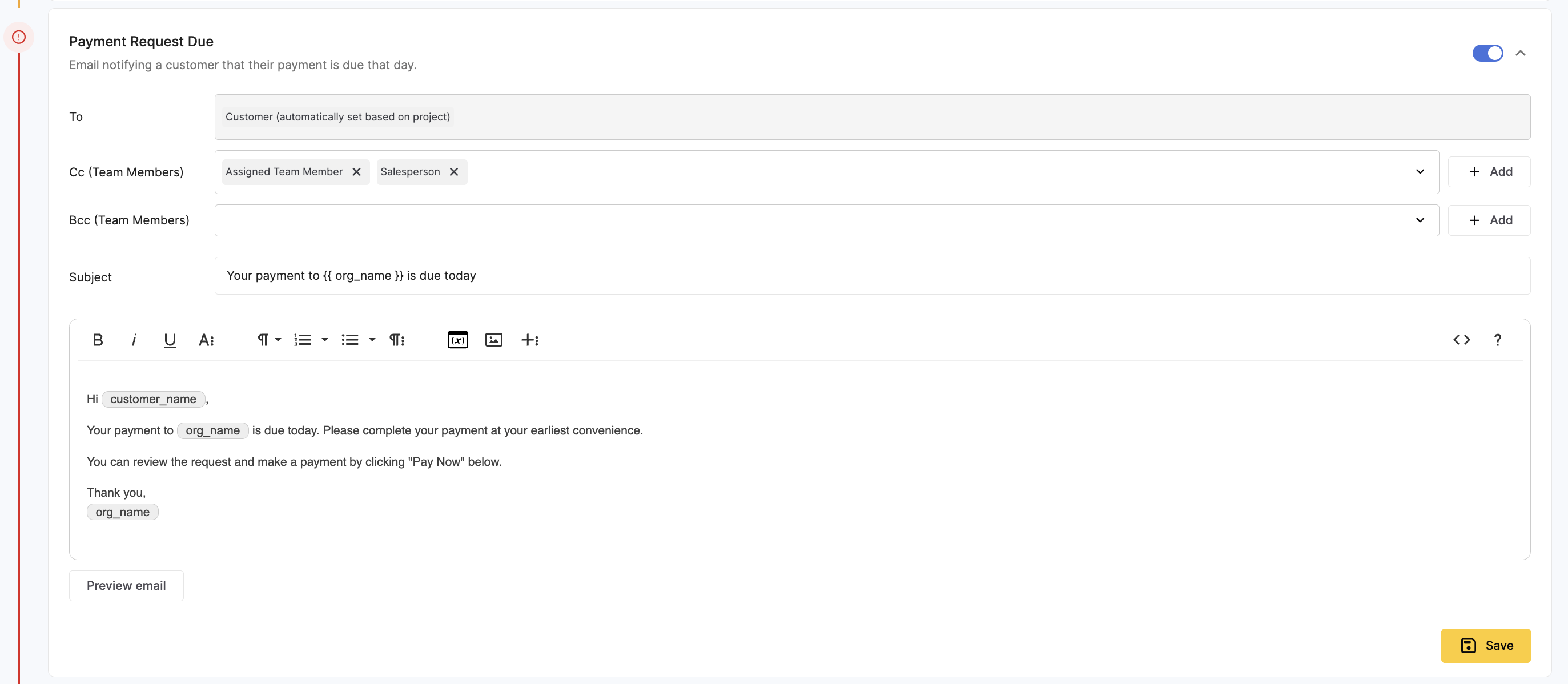
Due Today: Sent on the exact day specified in your Payment Request settings. It is designed to be a direct notification that payment is required immediately.
Overdue Notices: Automated "nudge" emails sent at your preferred intervals after the due date has passed to help protect your margins.
4. Payment Authorized (The Receipt)
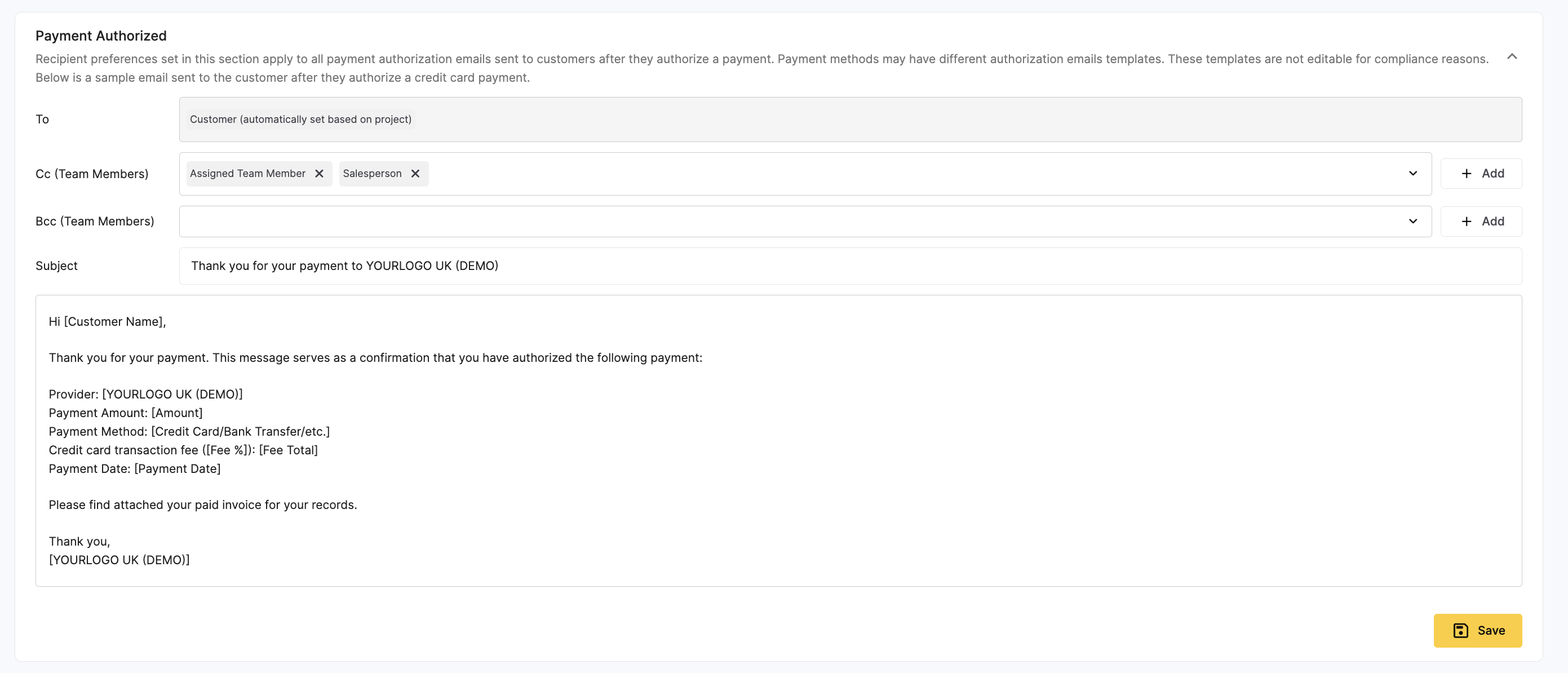
This is sent automatically once a customer successfully pays.
Compliance Note: For legal reasons, this template is not editable.
Internal Tracking: You can add your accounting team as a CC/BCC to this email to streamline your reconciliation process.
Internal Notifications
This tab determines who in your organization stays informed. It is divided into Project Notifications and Admin Notifications.
1. Internal Project Notifications
Customer Viewed Payment Link: This is your early-warning system. It alerts your team the moment a customer opens the link, providing the perfect opening for a salesperson to follow up.
Payment Authorized (Internal): A streamlined internal note confirming a payment was authorized, including "next steps" for your operations team.
2. Internal Admin Notifications
Payments Processed Digest: A daily summary of all successful transactions sent on days when you receive a payout.
Payment Action Roundup: A weekly email highlighting pending items that require follow-up to keep your pipeline moving.
Direct Payment Notifications: (See Critical Workflow below).
Adding team members to receive notification:
You can add team member role to be the one receiving the notifications or you can click the + Add button at the end of each line to add a specific email:
Team role:
Specific email:
The Direct Payment Workflow (Critical)
If your business accepts Direct Payments or Bank Transfers, this notification is your most important internal tool.
Customer Action: The customer notifies the system they have initiated a transfer.
Internal Alert: You receive an email with instructions to verify the funds in your bank account.
Pro Confirmation: You must manually confirm the payment was received within the OpenSolar project.
The Receipt: The customer only receives their formal "Payment Authorized" receipt once you have clicked confirm.
Configuration Best Practices
Placeholder Menu: Use the Insert Placeholder button in the top bar of the HTML editor to make emails dynamic (e.g.,
{{ customer_name }}).Previewing: Always use the Preview button before saving to see exactly how your placeholders and images will look to the customer.
Role-Based Routing: Route notifications to specific project roles (like Salesperson) to ensure the person who owns the relationship can act immediately.
Save Your Work: Your changes are not live until you click the Save button in the bottom right corner of the page.
Comments
0 comments
Article is closed for comments.